Google’s 2024 Tabs update was a game-changer for organizing long documents. Instead of searching through folders, you can now keep everything—briefs, notes, and drafts—in one place.
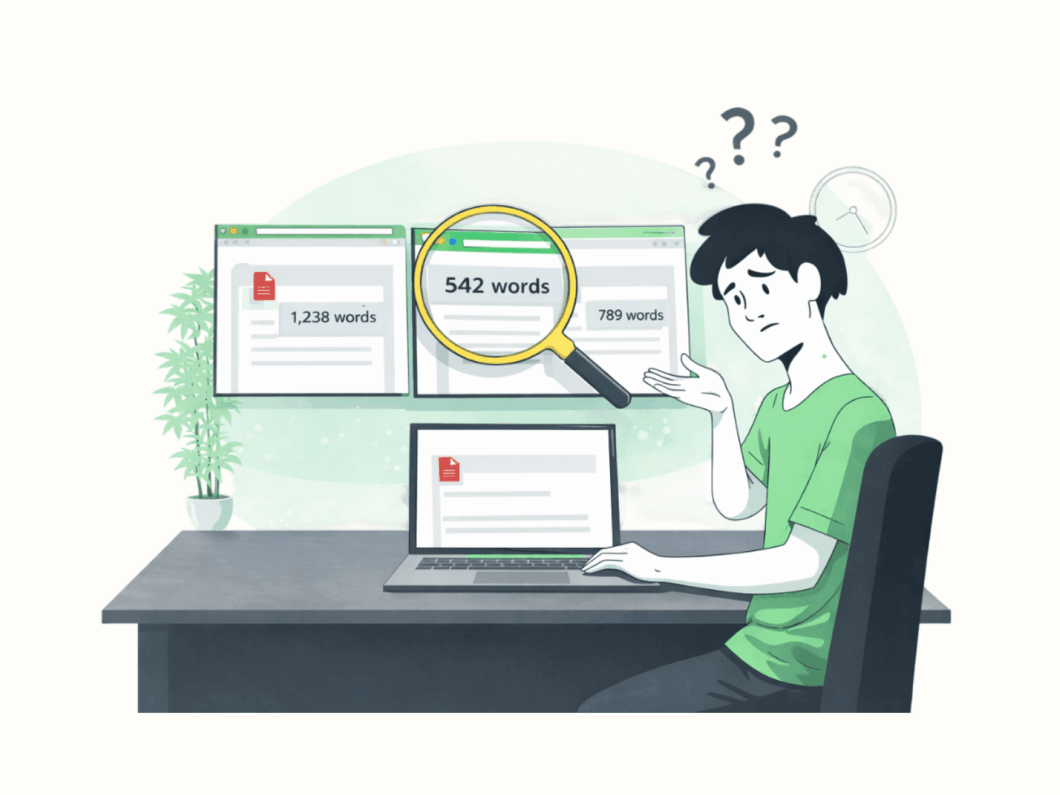
But there’s one big problem: Google’s built-in word counter only looks at one tab at a time. If you have dozens of tabs, you’re stuck clicking each one and doing the math yourself.
I built Word Count (All Tabs) to fix this. It’s a free tool that blends right into Google Docs to give you an instant total of your entire project.
Everything you need at a glance:
- Total Tabs: See the scale of your document.
- Global Count: Total words across every single tab.
- Accuracy: Precise character counts (with and without spaces).
- Live Refresh: Update your stats with one click as you type.
Watch the quick demo below, then follow our simple guide to add it to your docs for free.
How to See Word Count on Google Docs for All Tabs
Step 1 | Step 2 | Step 3 | Step 4 | Step 5 | Step 6 | Step 7 | Step 8 | Step 9 | Step 10 | Step 11 | Step 12 | Step 13
Follow these simple steps to add the Word Count tool to any document:
1. Open Your Google Doc
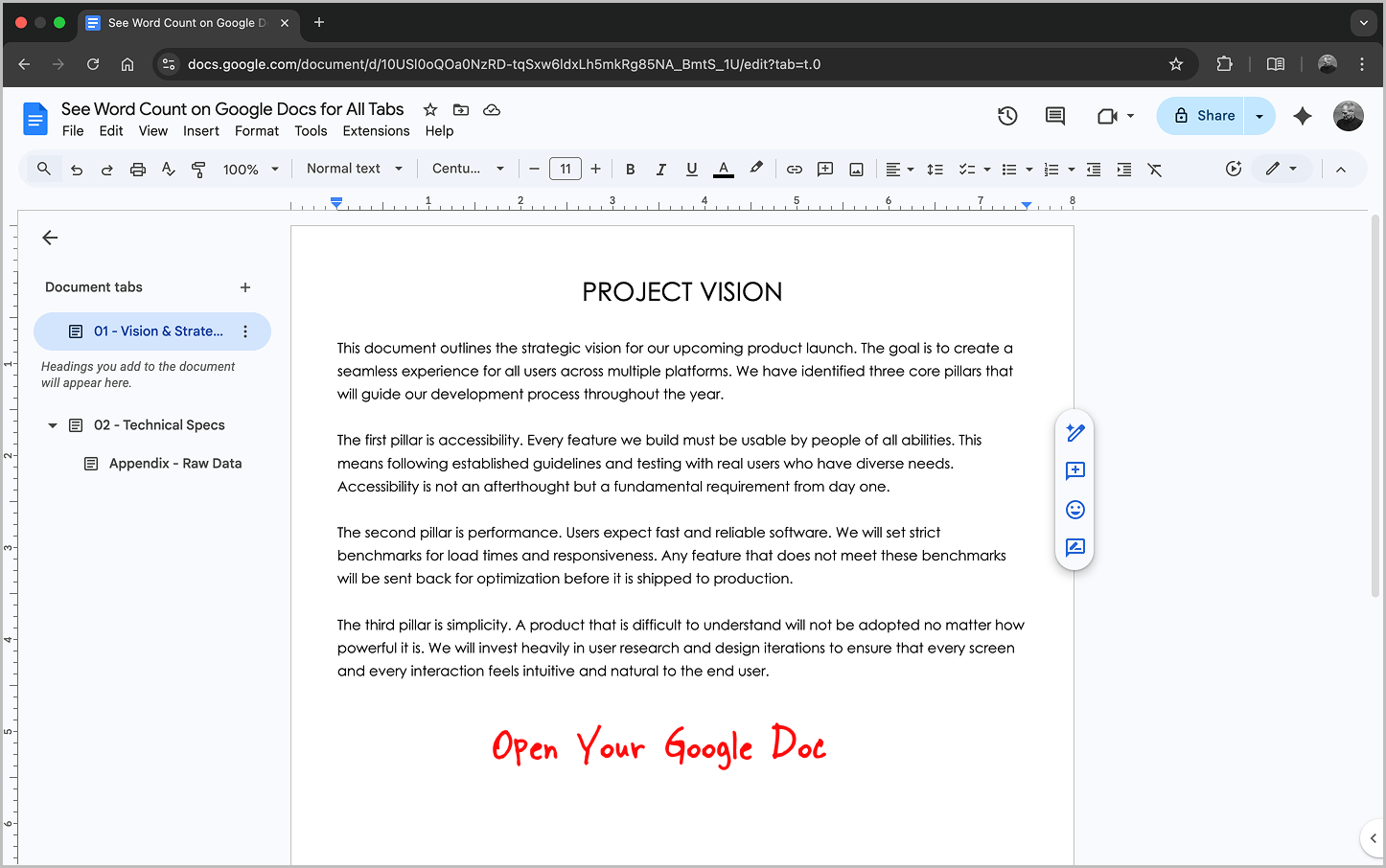
The first step is to open the document in which you want to track the total word count across all tabs.
Once it is open, you can move to the next step.
2. Open the Apps Script Editor
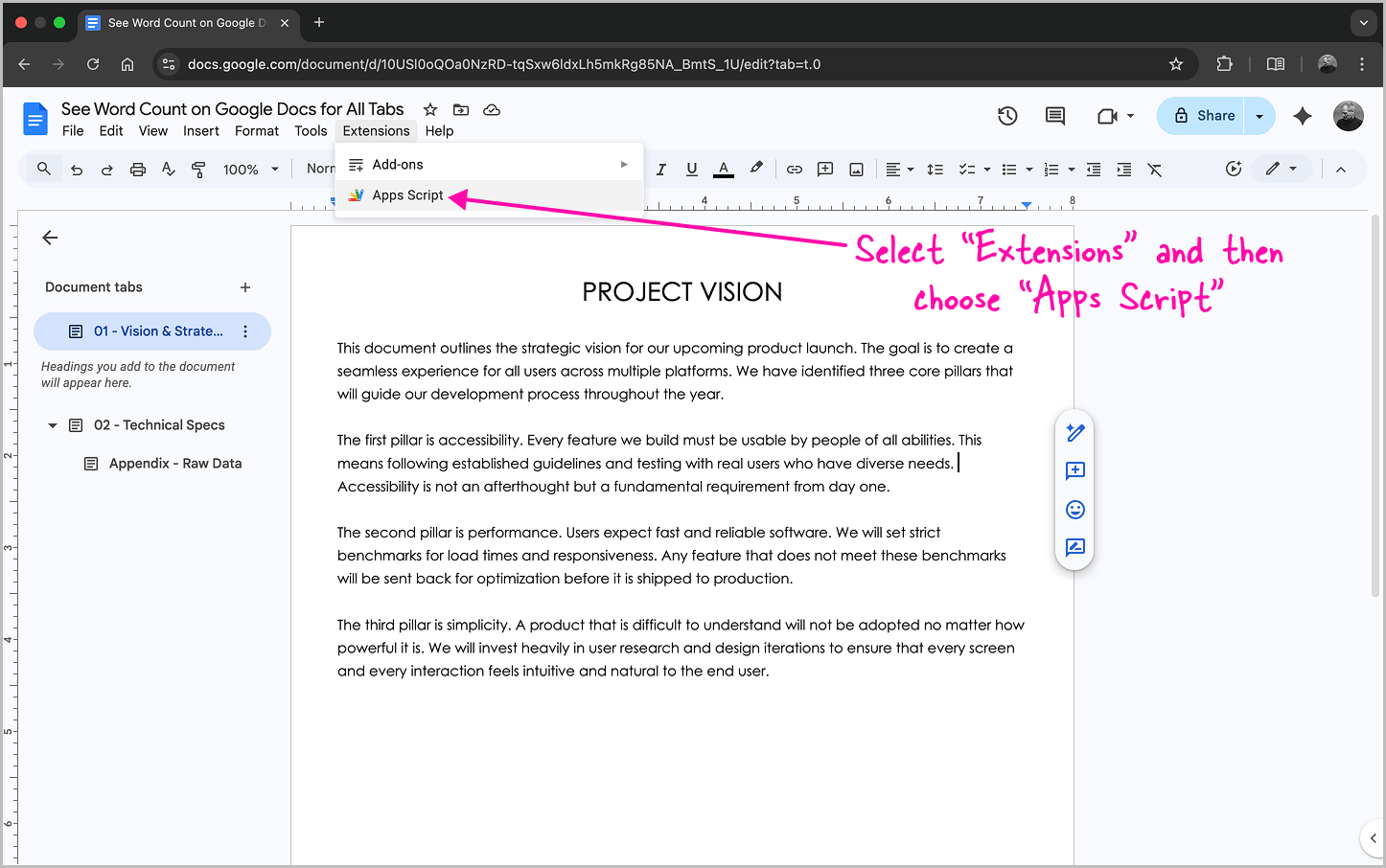
Now, on the top bar, select Extensions and then choose Apps Script from the dropdown menu.
This will open the code editor in a new tab where we can start building the tool.
3. Name the Project
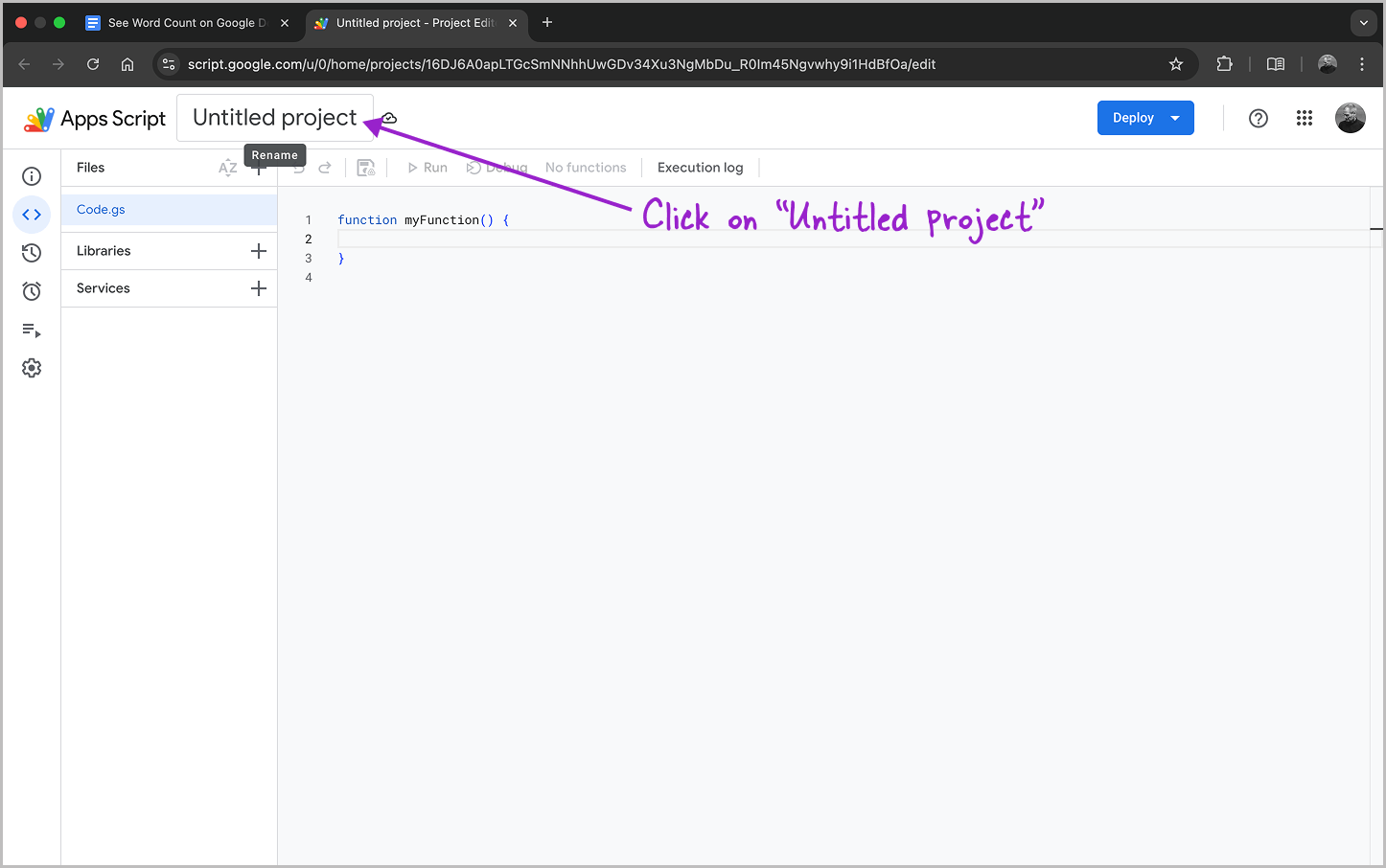
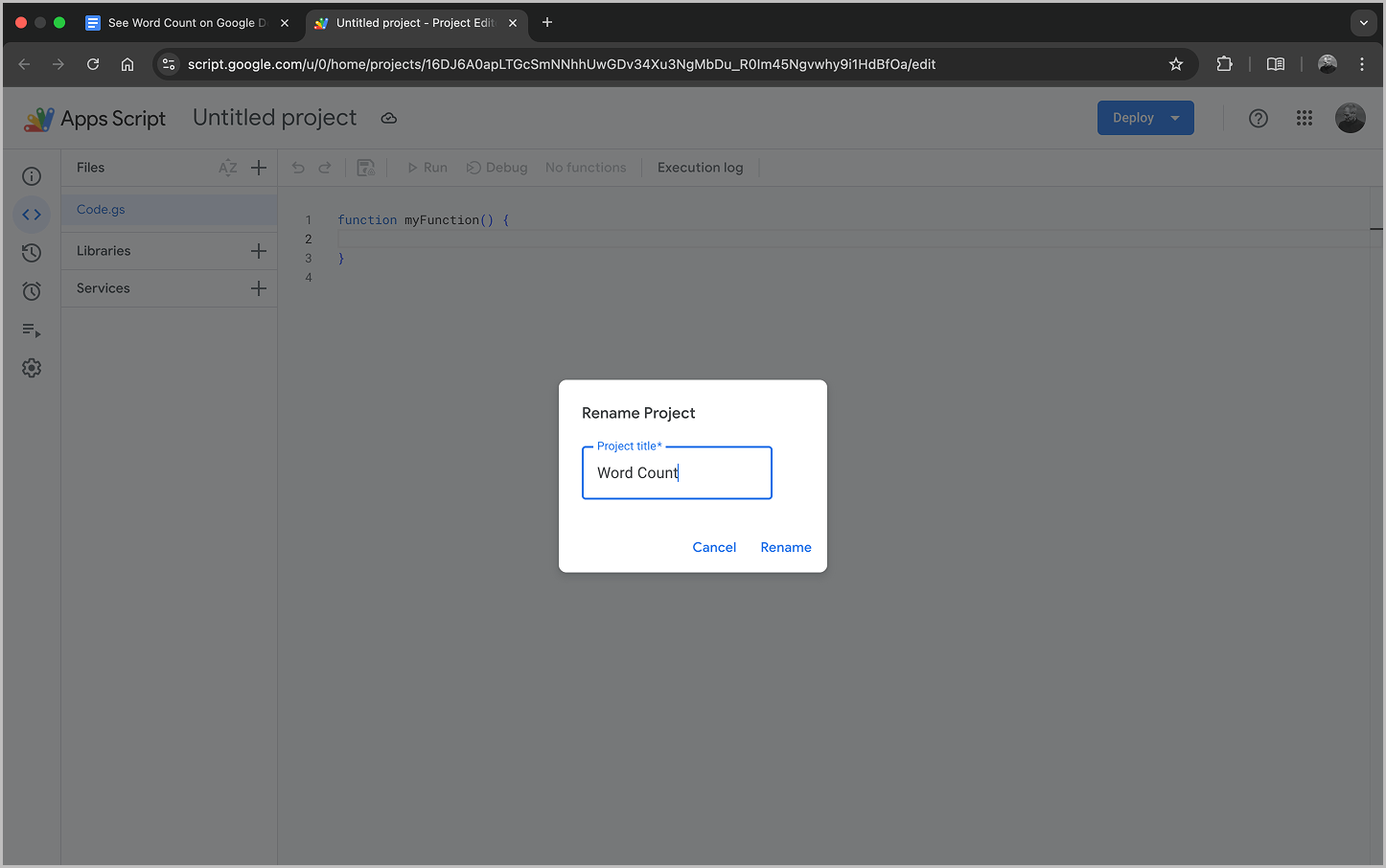
First things first, let’s name the project. I’m going to name mine ‘Word Count’ but you can choose any name you like.
To begin, click on ‘Untitled project’ at the top left, enter your chosen name, and move on to the next step.
4. Setup the Code.gs File
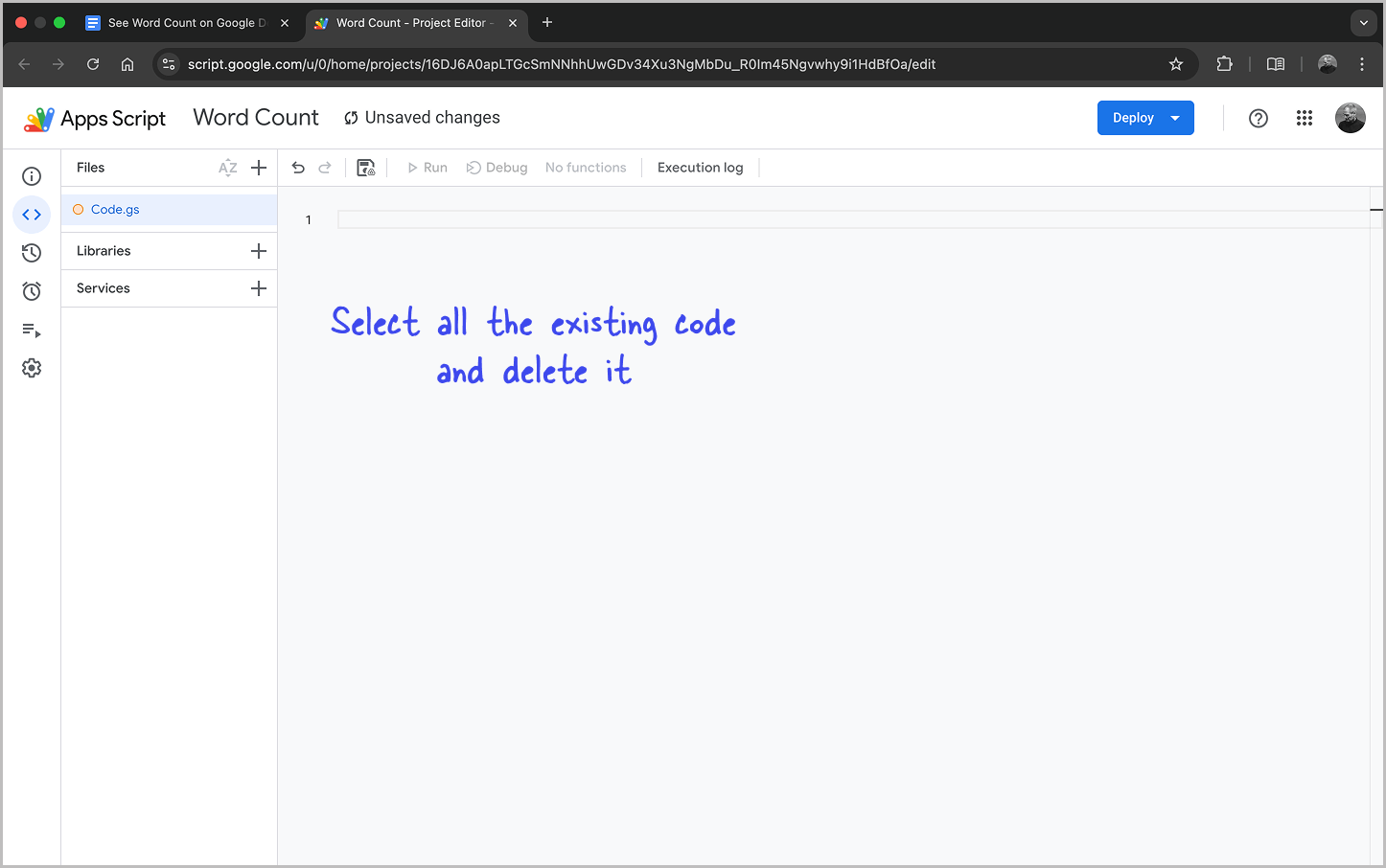
Now we’ll build the ‘engine’ that handles the calculations. You should already be in the Code.gs tab. Select all the existing code and delete it.
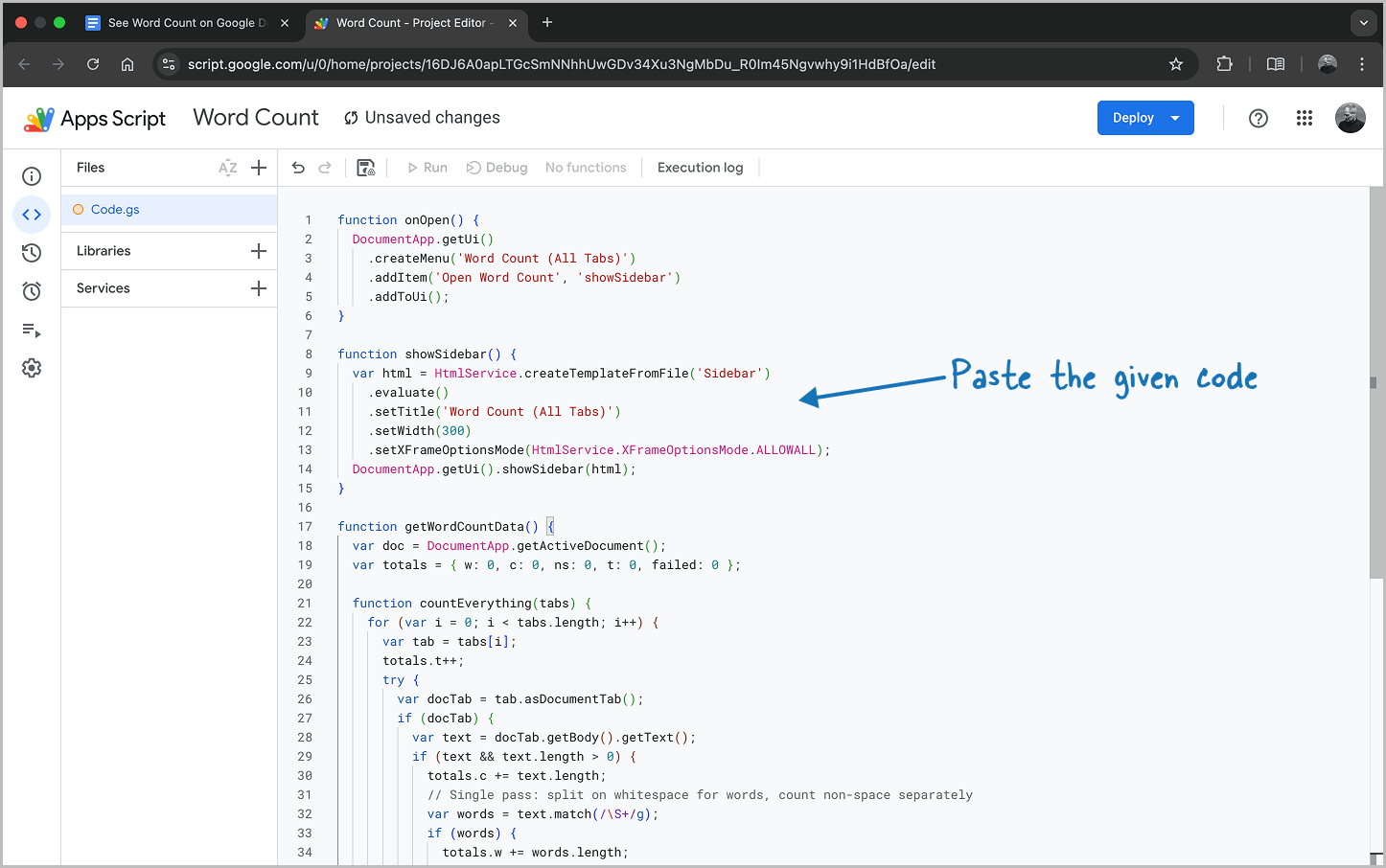
function onOpen() {
  DocumentApp.getUi()
    .createMenu('Word Count (All Tabs)')
    .addItem('Open Word Count', 'showSidebar')
    .addToUi();
}

function showSidebar() {
  var html = HtmlService.createTemplateFromFile('Sidebar')
    .evaluate()
    .setTitle('Word Count (All Tabs)')
    .setWidth(300)
    .setXFrameOptionsMode(HtmlService.XFrameOptionsMode.ALLOWALL);
  DocumentApp.getUi().showSidebar(html);
}

function getWordCountData() {
  var doc = DocumentApp.getActiveDocument();
  var totals = { w: 0, c: 0, ns: 0, t: 0, failed: 0 };

  function countEverything(tabs) {
    for (var i = 0; i < tabs.length; i++) {
      var tab = tabs[i];
      totals.t++;
      try {
        var docTab = tab.asDocumentTab();
        if (docTab) {
          var text = docTab.getBody().getText();
          if (text && text.length > 0) {
            totals.c += text.length;
            // Single pass: split on whitespace for words, count non-space separately
            var words = text.match(/\S+/g);
            if (words) {
              totals.w += words.length;
              // Sum non-space chars from the word tokens — avoids a second full-string scan
              for (var j = 0; j < words.length; j++) {
                totals.ns += words[j].length;
              }
            }
          }
        }
      } catch (e) {
        totals.failed++;
        Logger.log('Tab error: ' + e.message);
      }
      var children = tab.getChildTabs();
      if (children && children.length > 0) countEverything(children);
    }
  }

  countEverything(doc.getTabs());

  return {
    t: totals.t,
    failed: totals.failed,
    w: totals.w.toLocaleString(),
    c: totals.c.toLocaleString(),
    ns: totals.ns.toLocaleString()
  };
}
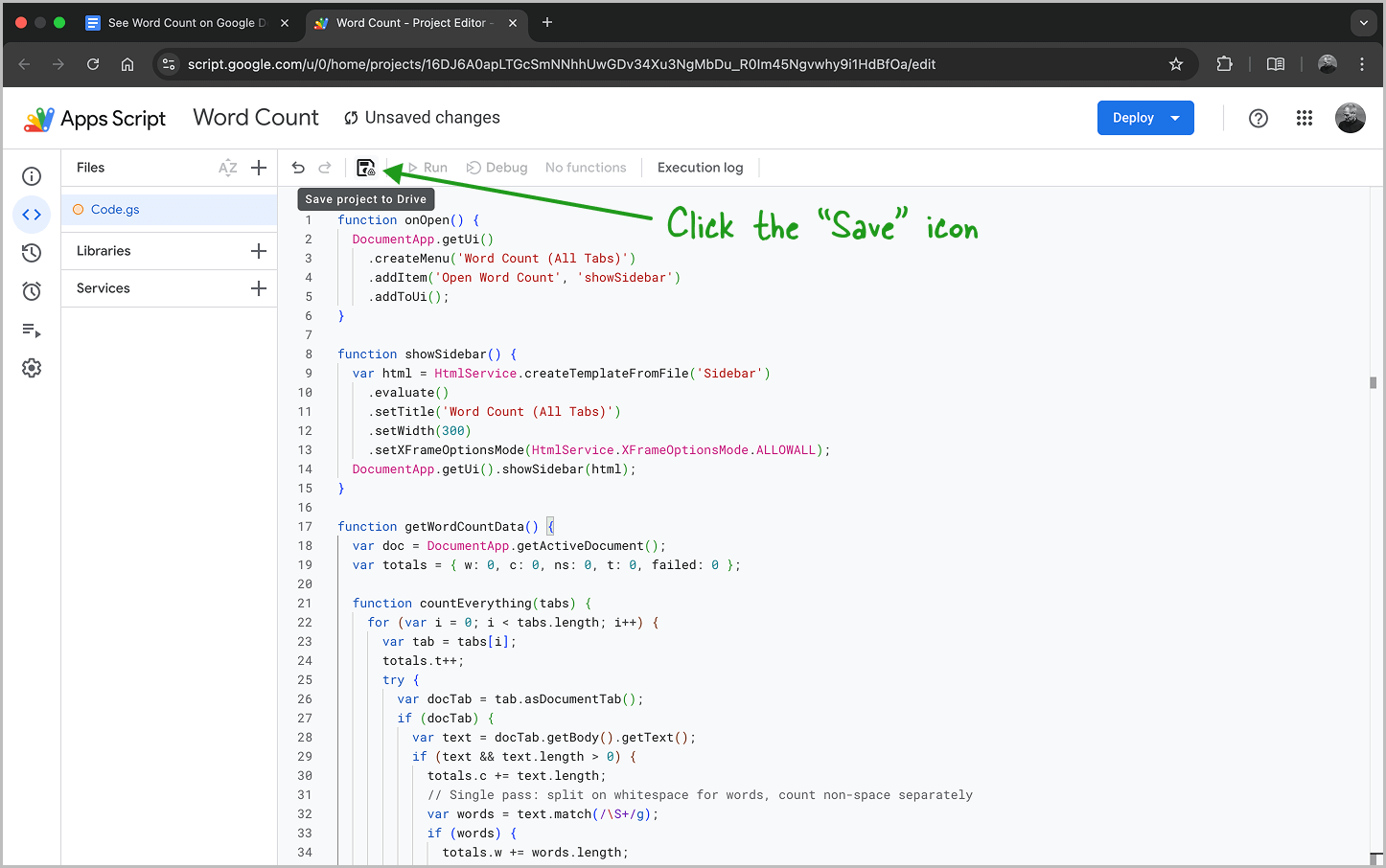
Once the editor is empty, copy the code given above, paste it into the tab, and click the Save icon.”
5. Create the Sidebar HTML File
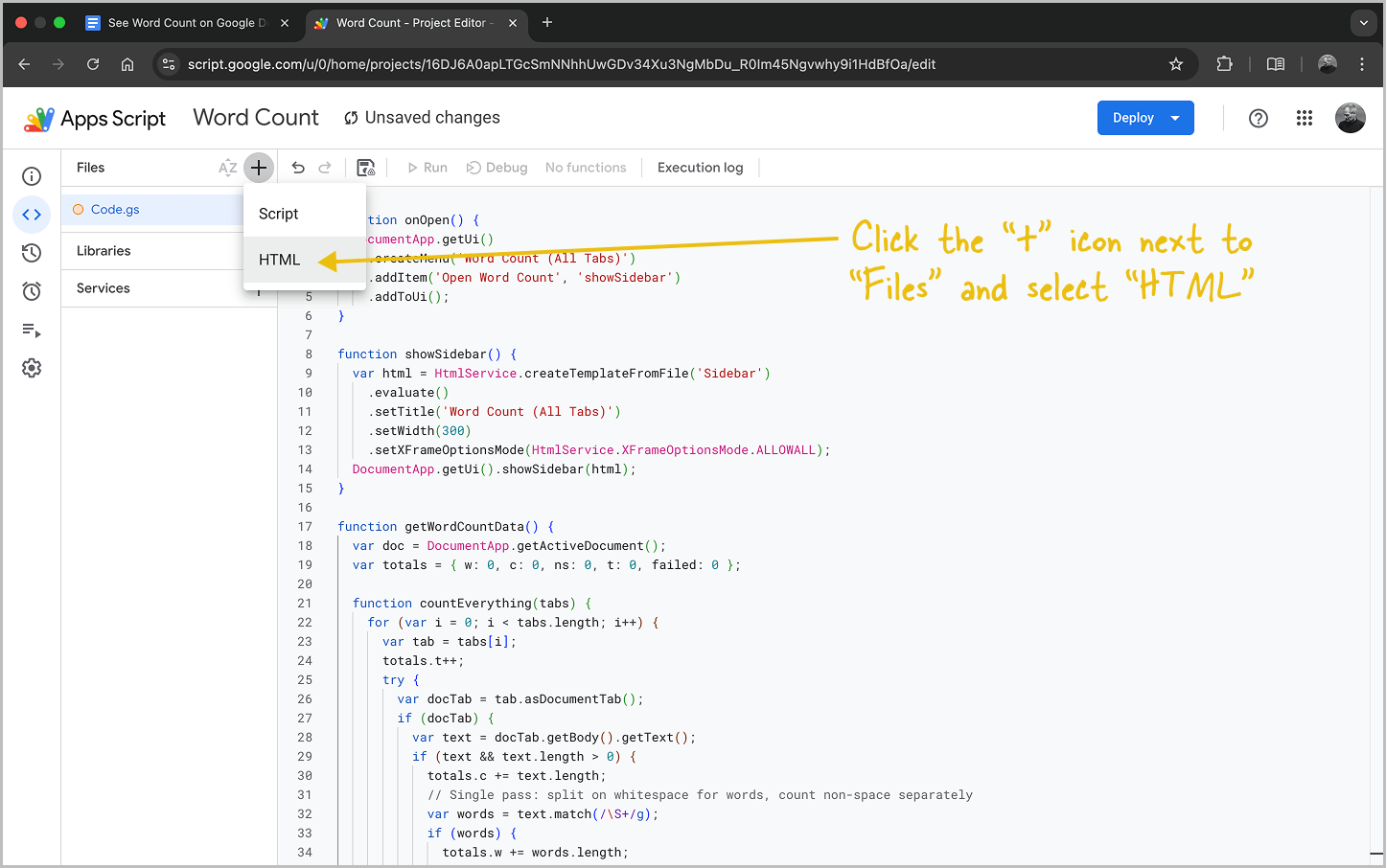
Now that the engine is ready, we need to create the sidebar for the user interface. To begin, click the + icon next to ‘Files’ and select HTML.
Name this file exactly Sidebar (it must have a capital ‘S’). Once you click inside the editor, Apps Script will automatically add the .html extension.
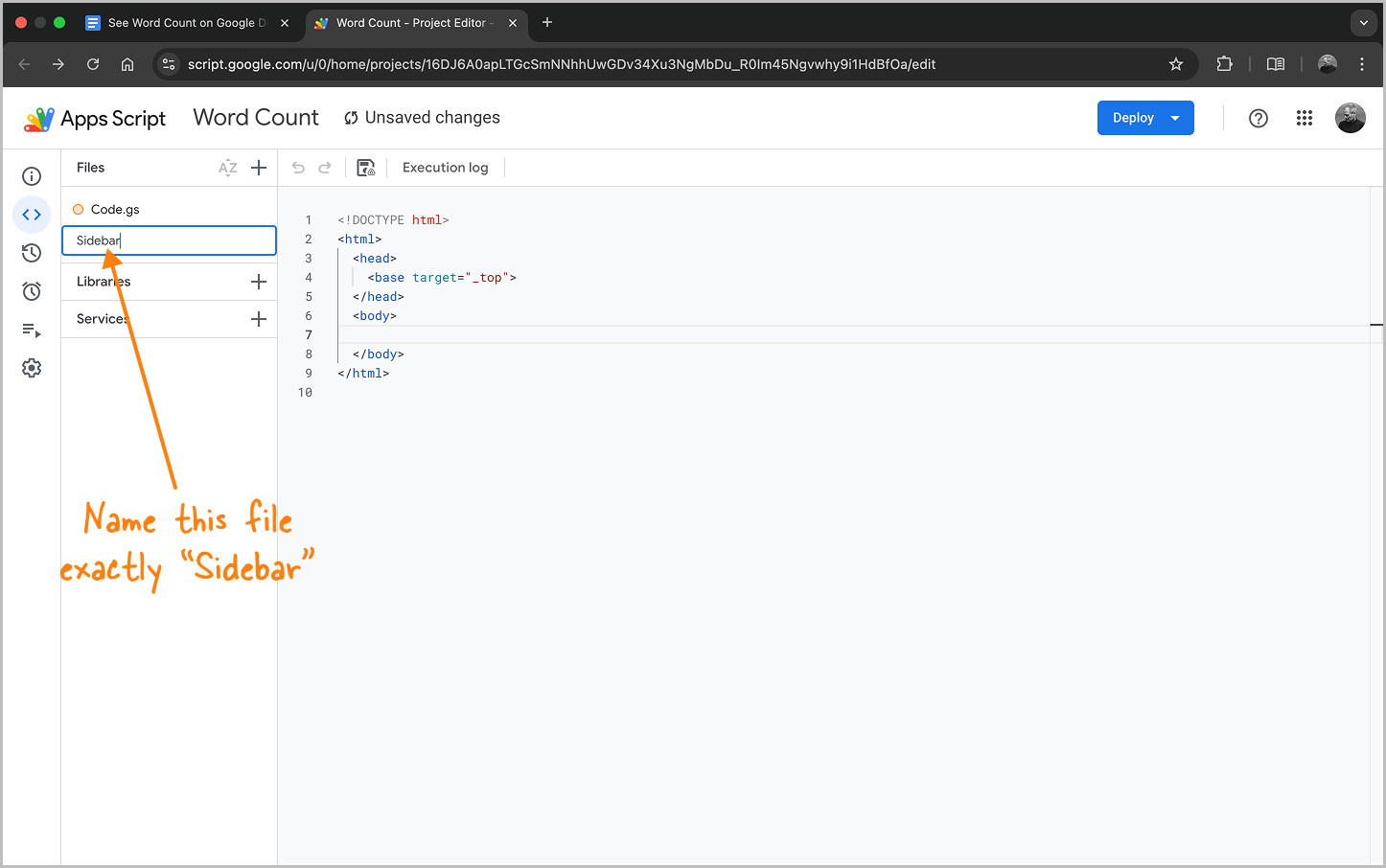
Make sure the name matches my example exactly; otherwise, the tool will not function. Once confirmed, proceed to the next step.”
6. Setup the Sidebar Code
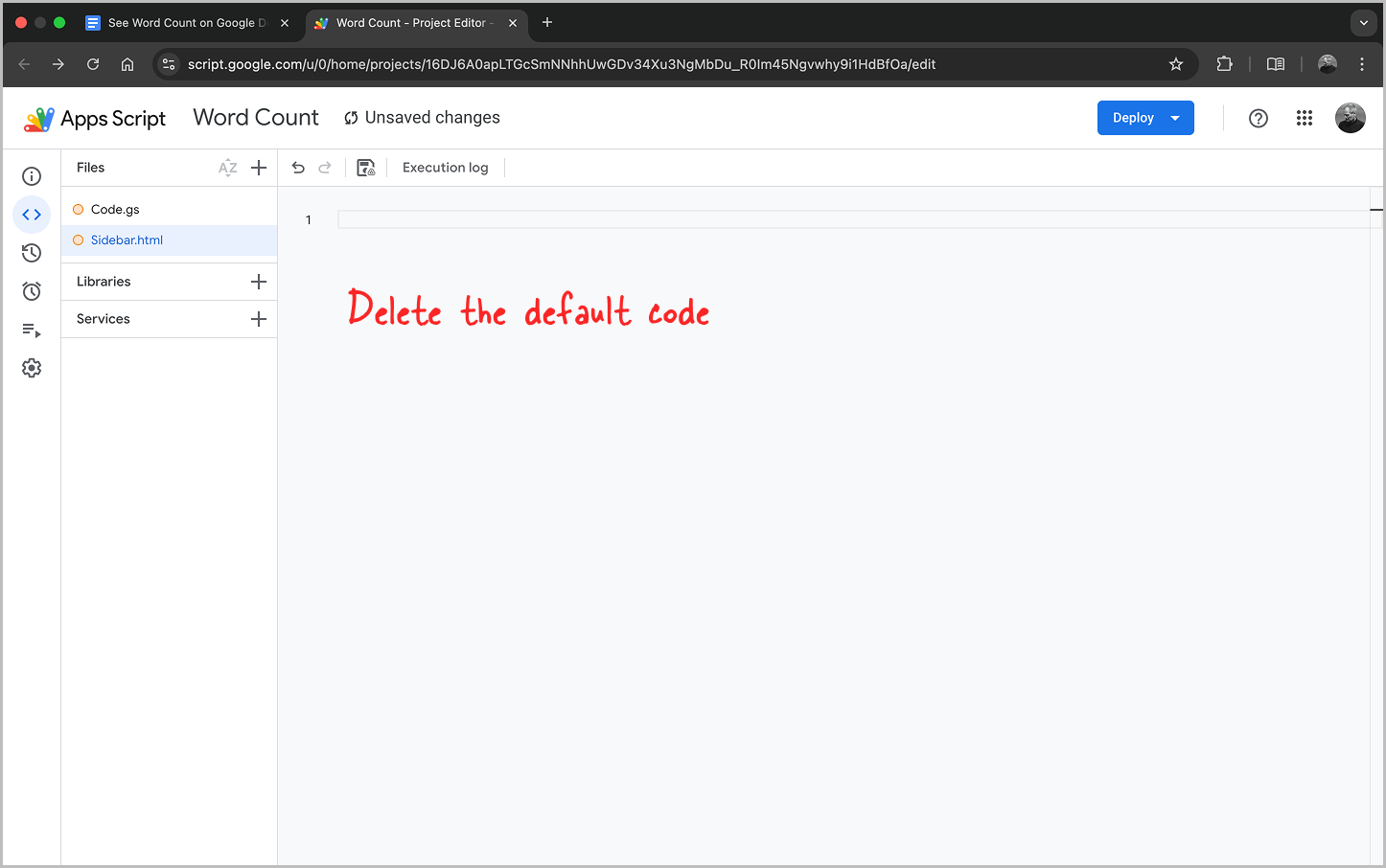
Now, delete the default code in your new Sidebar.html file, paste the provided snippet in its place, and click Save.
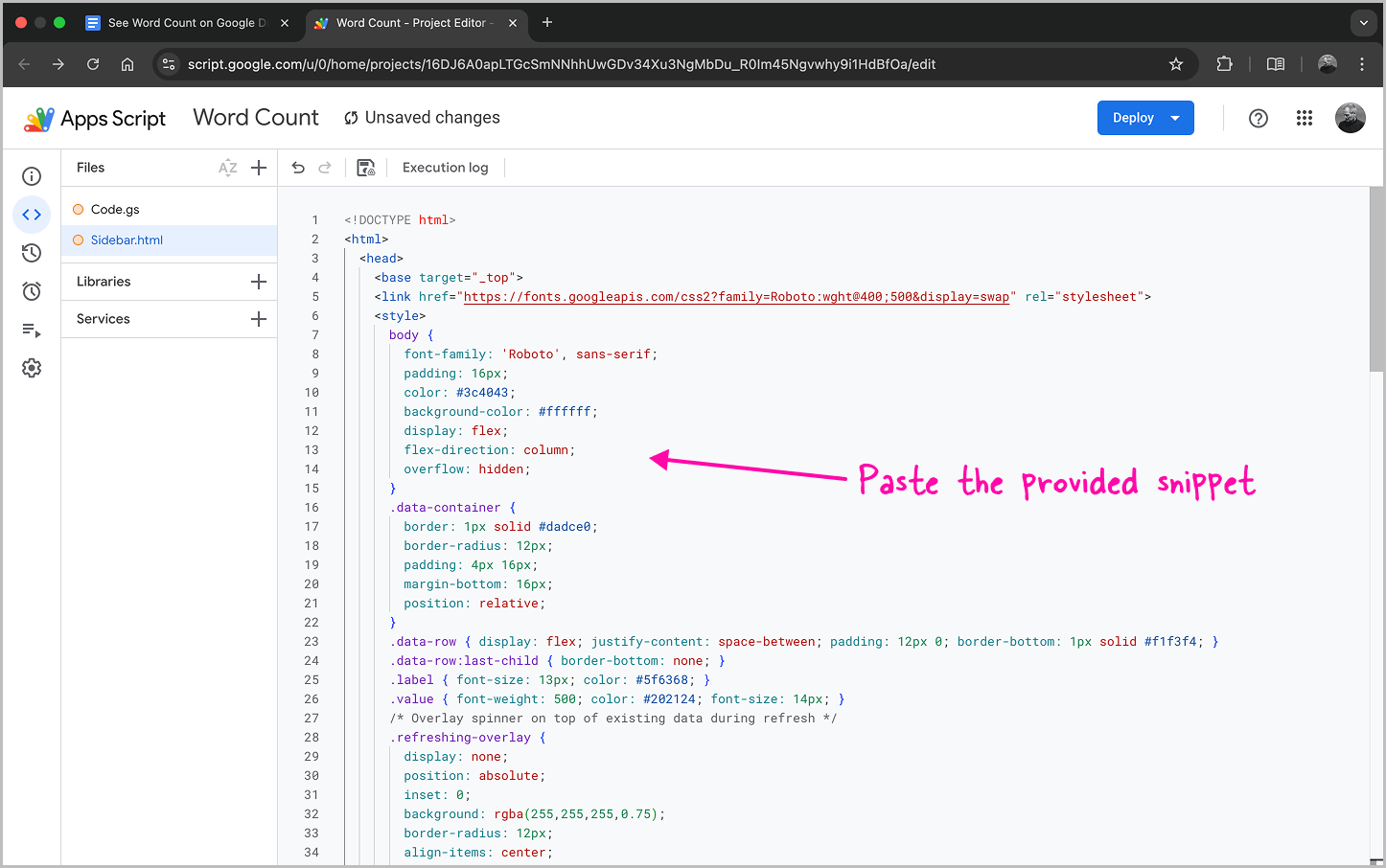
<!DOCTYPE html>
<html>
  <head>
    <base target="_top">
    <link href="https://fonts.googleapis.com/css2?family=Roboto:wght@400;500&display=swap" rel="stylesheet">
    <style>
      body {
        font-family: 'Roboto', sans-serif;
        padding: 16px;
        color: #3c4043;
        background-color: #ffffff;
        display: flex;
        flex-direction: column;
        overflow: hidden;
      }
      .data-container {
        border: 1px solid #dadce0;
        border-radius: 12px;
        padding: 4px 16px;
        margin-bottom: 16px;
        position: relative;
      }
      .data-row { display: flex; justify-content: space-between; padding: 12px 0; border-bottom: 1px solid #f1f3f4; }
      .data-row:last-child { border-bottom: none; }
      .label { font-size: 13px; color: #5f6368; }
      .value { font-weight: 500; color: #202124; font-size: 14px; }
      /* Overlay spinner on top of existing data during refresh */
      .refreshing-overlay {
        display: none;
        position: absolute;
        inset: 0;
        background: rgba(255,255,255,0.75);
        border-radius: 12px;
        align-items: center;
        justify-content: center;
        font-size: 13px;
        color: #5f6368;
      }
      .refreshing-overlay.active { display: flex; }
      .btn {
        width: 100%; background: #1a73e8; color: white; border: none;
        padding: 10px 24px; border-radius: 24px; font-size: 14px;
        font-weight: 500; cursor: pointer; text-align: center;
        transition: opacity 0.2s;
      }
      .btn:disabled { opacity: 0.6; cursor: not-allowed; }
      .error-msg { color: #d93025; font-size: 12px; margin-top: 8px; text-align: center; display: none; }
      .warn-msg { color: #e37400; font-size: 12px; margin-top: 8px; text-align: center; display: none; }
      hr { border: 0; border-top: 1px solid #e8eaed; margin: 16px 0; }
      .footer { text-align: center; margin-top: auto; }
      .guide-link { color: #1a73e8; text-decoration: none; font-size: 13px; font-weight: 500; margin-bottom: 12px; display: block; }
      .support-box { padding: 12px; background-color: #f8f9fa; border-radius: 12px; }
      .support-text { font-size: 11px; color: #5f6368; display: block; margin-bottom: 4px; }
      .coffee-link { color: #202124; text-decoration: none; font-weight: 500; font-size: 13px; }
      .brand-credit { display: block; margin-top: 10px; font-size: 11px; color: #70757a; }
    </style>
  </head>
  <body>
    <div class="data-container">
      <div class="refreshing-overlay" id="overlay">Refreshing…</div>
      <div id="loader" style="text-align:center; padding:20px;">Loading stats…</div>
      <div id="content" style="display:none;">
        <div class="data-row"><span class="label">Total Tabs</span><span class="value" id="res-t">0</span></div>
        <div class="data-row"><span class="label">Words</span><span class="value" id="res-w">0</span></div>
        <div class="data-row"><span class="label">Characters</span><span class="value" id="res-c">0</span></div>
        <div class="data-row"><span class="label">Excl. Spaces</span><span class="value" id="res-ns">0</span></div>
      </div>
    </div>
    <button class="btn" id="refreshBtn" onclick="refresh()">Refresh Results</button>
    <div class="error-msg" id="errorMsg">Something went wrong. Please try again.</div>
    <div class="warn-msg" id="warnMsg"></div>

    <div class="footer">
      <hr>
      <a href="https://docsslidessheets.com/tutorials/google-docs/word-count-on-google-docs-for-all-tabs/" target="_blank" class="guide-link">Full User Guide</a>
      <div class="support-box">
        <span class="support-text">Enjoying this tool? Support our free scripts:</span>
        <a href="https://www.paypal.com/paypalme/kambleshubham" target="_blank" class="coffee-link">☕ Buy me a coffee</a>
      </div>
      <span class="brand-credit">Created by DocsSlidesSheets.com</span>
    </div>

    <script>
      var hasLoaded = false;

      function refresh() {
        var btn = document.getElementById('refreshBtn');
        var errorMsg = document.getElementById('errorMsg');
        var warnMsg = document.getElementById('warnMsg');
        btn.disabled = true;
        errorMsg.style.display = 'none';
        warnMsg.style.display = 'none';

        if (hasLoaded) {
          // Show overlay on existing data instead of blanking it
          document.getElementById('overlay').classList.add('active');
        }

        google.script.run
          .withSuccessHandler(function(d) {
            document.getElementById('res-t').innerText = d.t;
            document.getElementById('res-w').innerText = d.w;
            document.getElementById('res-c').innerText = d.c;
            document.getElementById('res-ns').innerText = d.ns;

            if (d.failed > 0) {
              warnMsg.innerText = d.failed + ' tab(s) could not be read.';
              warnMsg.style.display = 'block';
            }

            document.getElementById('overlay').classList.remove('active');
            document.getElementById('loader').style.display = 'none';
            document.getElementById('content').style.display = 'block';
            btn.disabled = false;
            hasLoaded = true;
          })
          .withFailureHandler(function(err) {
            document.getElementById('overlay').classList.remove('active');
            errorMsg.style.display = 'block';
            btn.disabled = false;
          })
          .getWordCountData();
      }

      window.onload = refresh;
    </script>
  </body>
</html>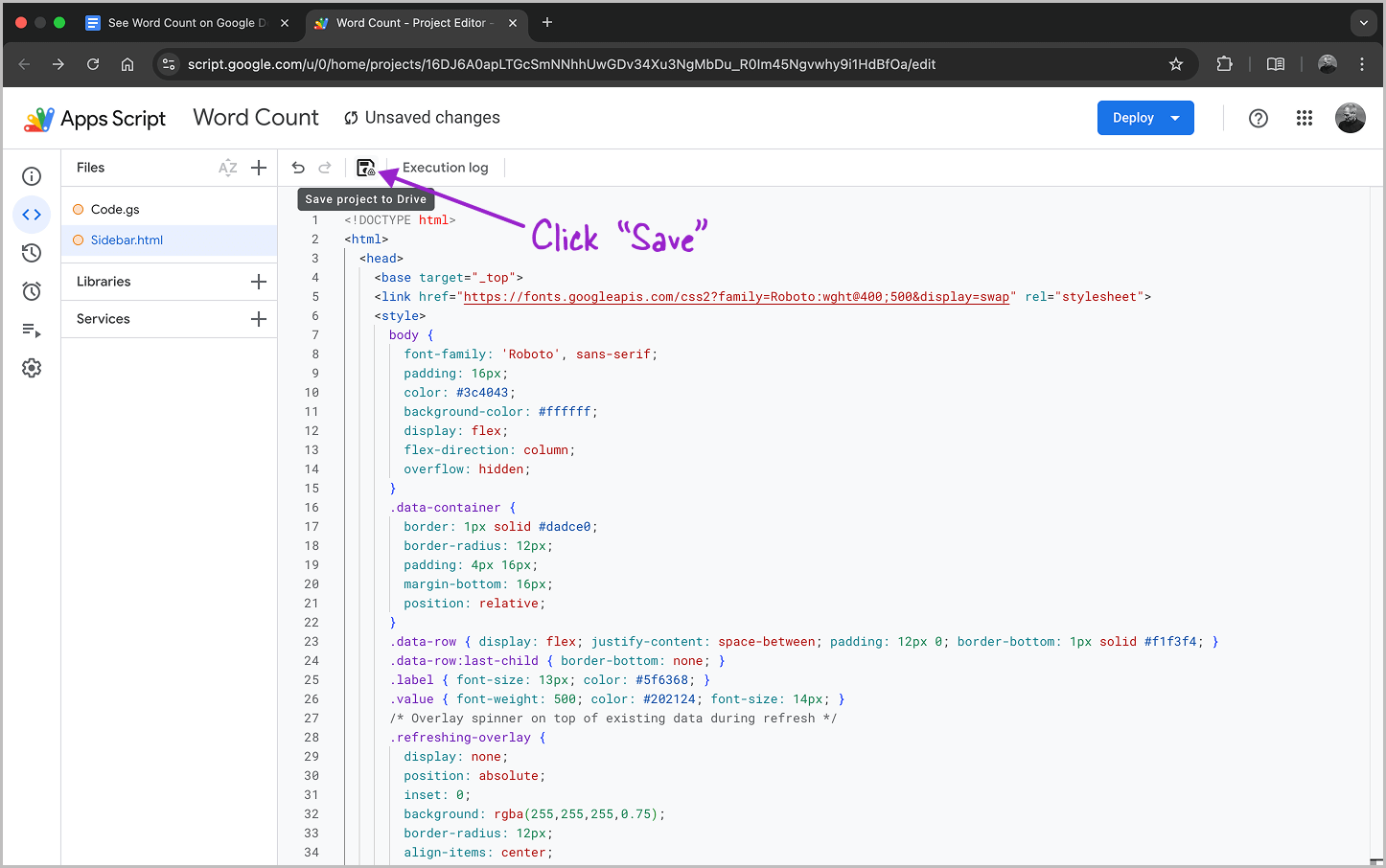
Your tool is now almost ready!
7. Run the Initial Setup
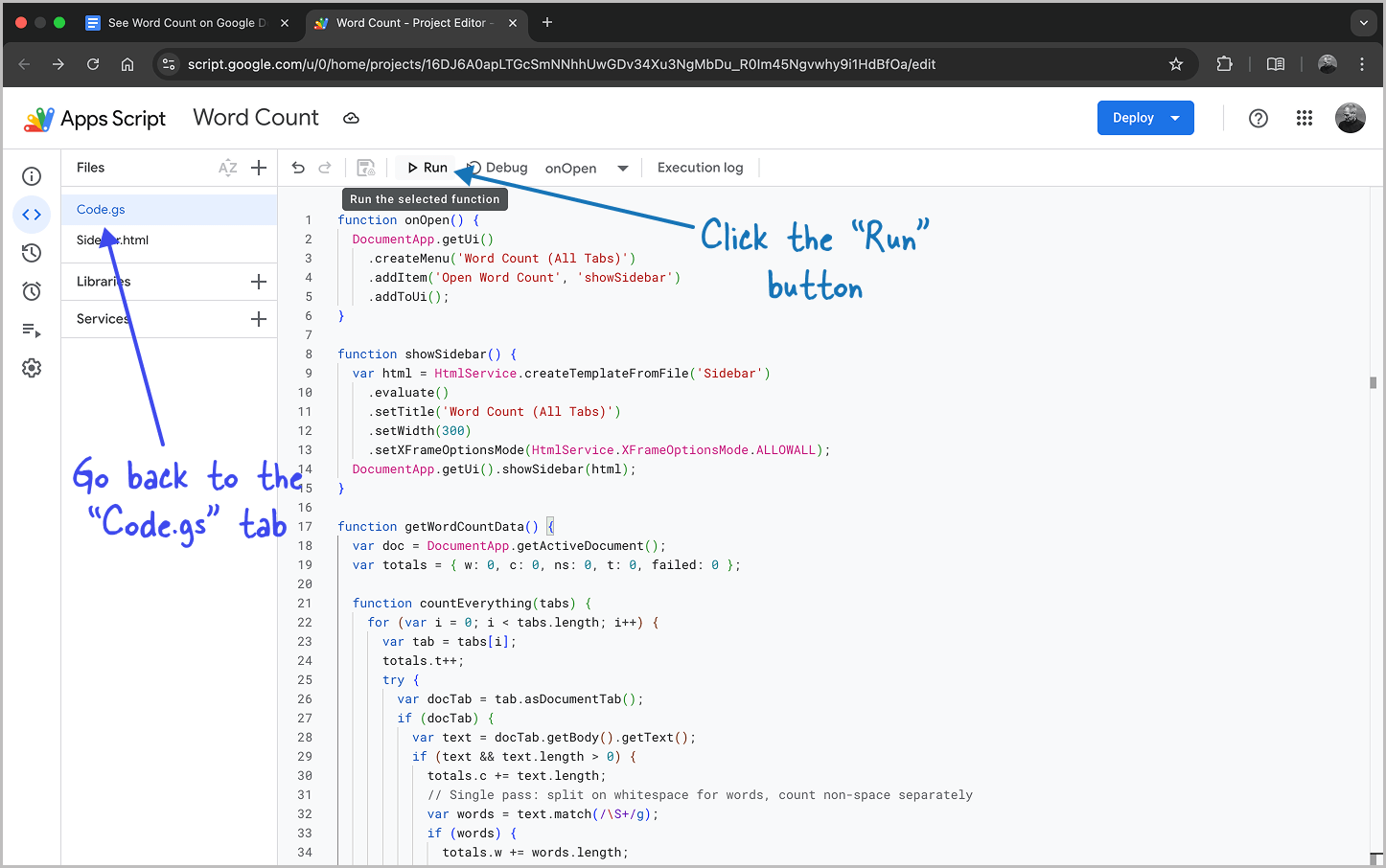
Now, go back to the Code.gs tab and click the Run button at the top of the screen.
8. Review Permissions
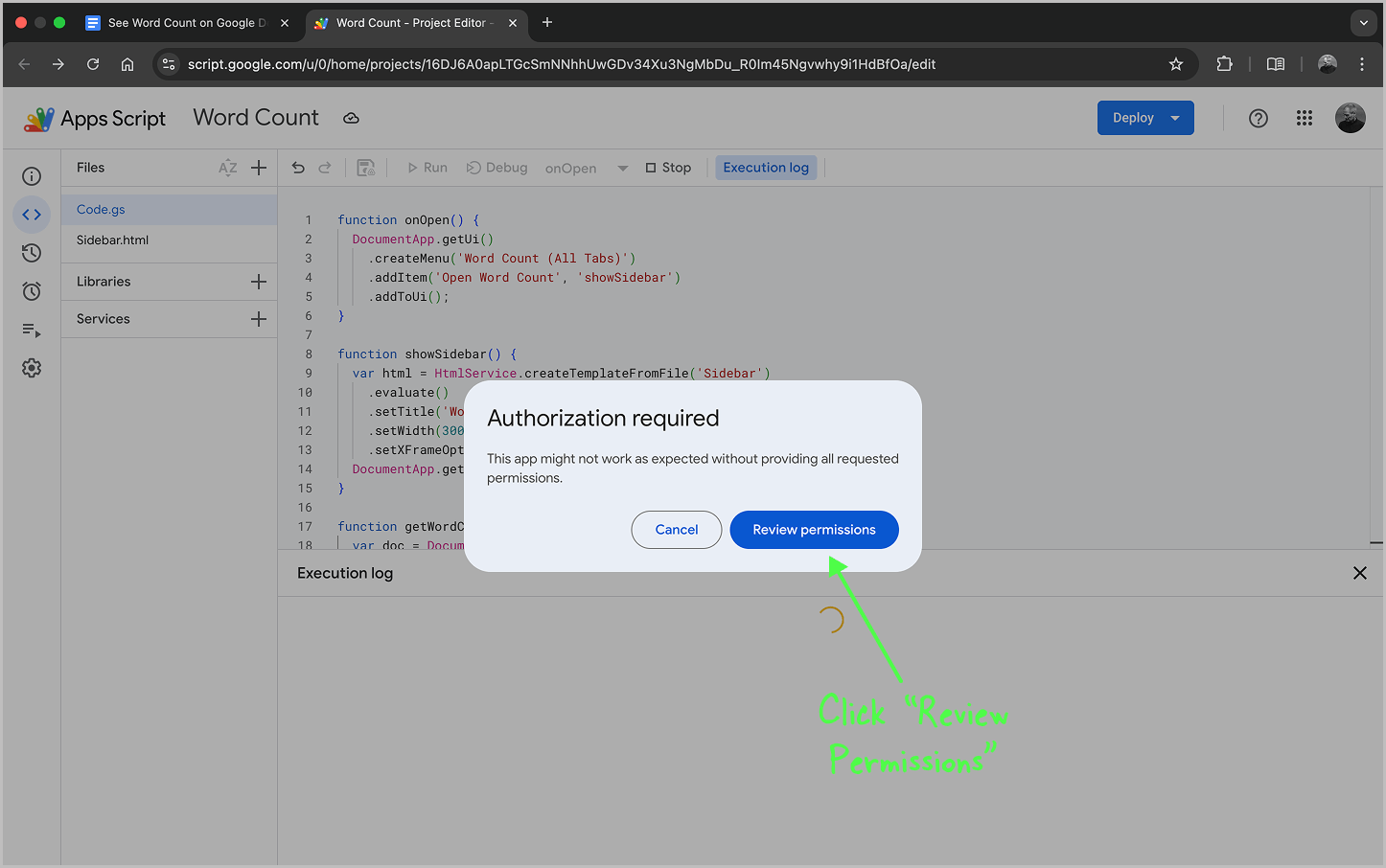
You will see a pop-up, click Review Permissions and select your Google account.
9. Bypass the Security Warning
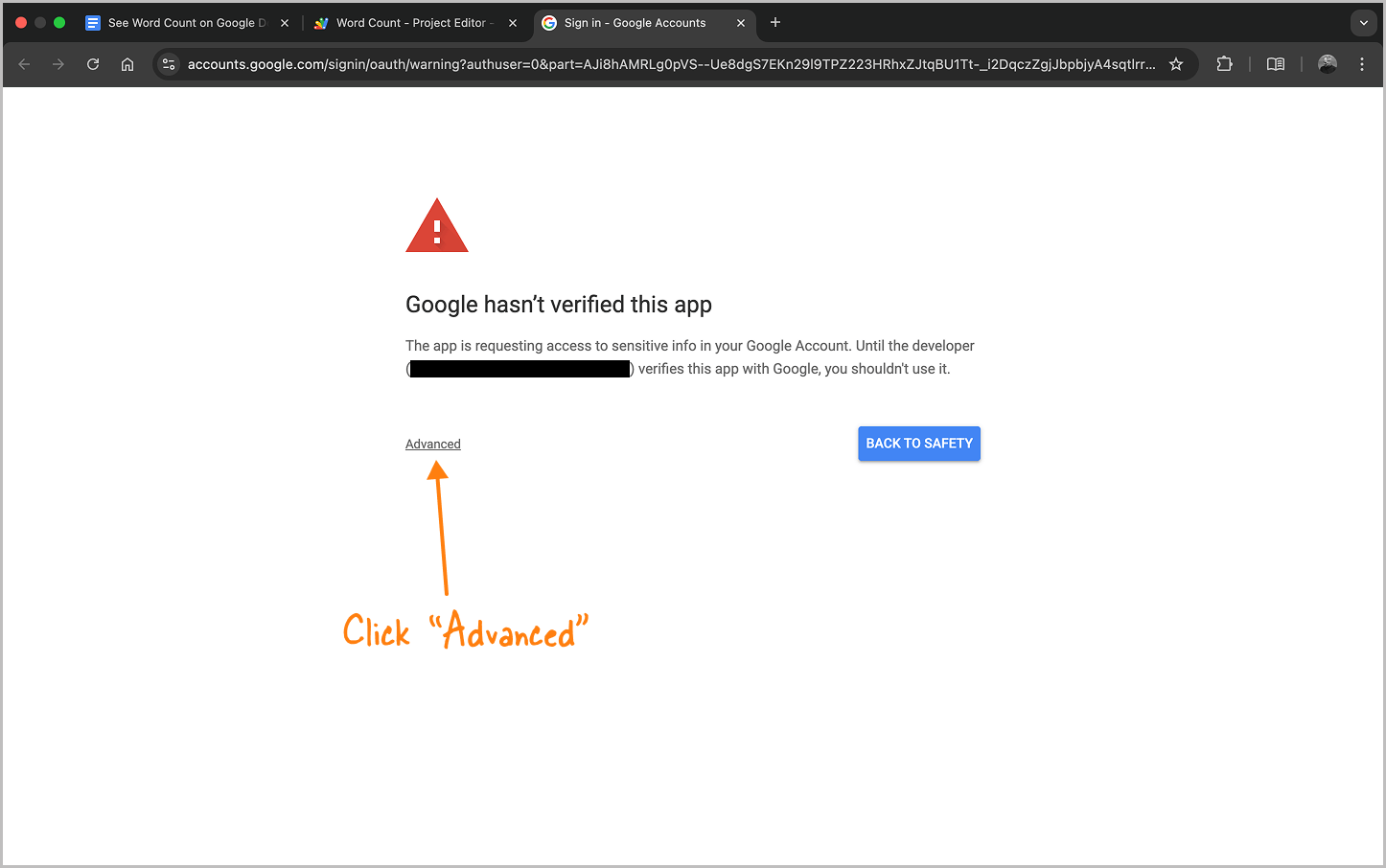
Click Advanced, then click the link at the bottom that says Go to Word Count (unsafe).
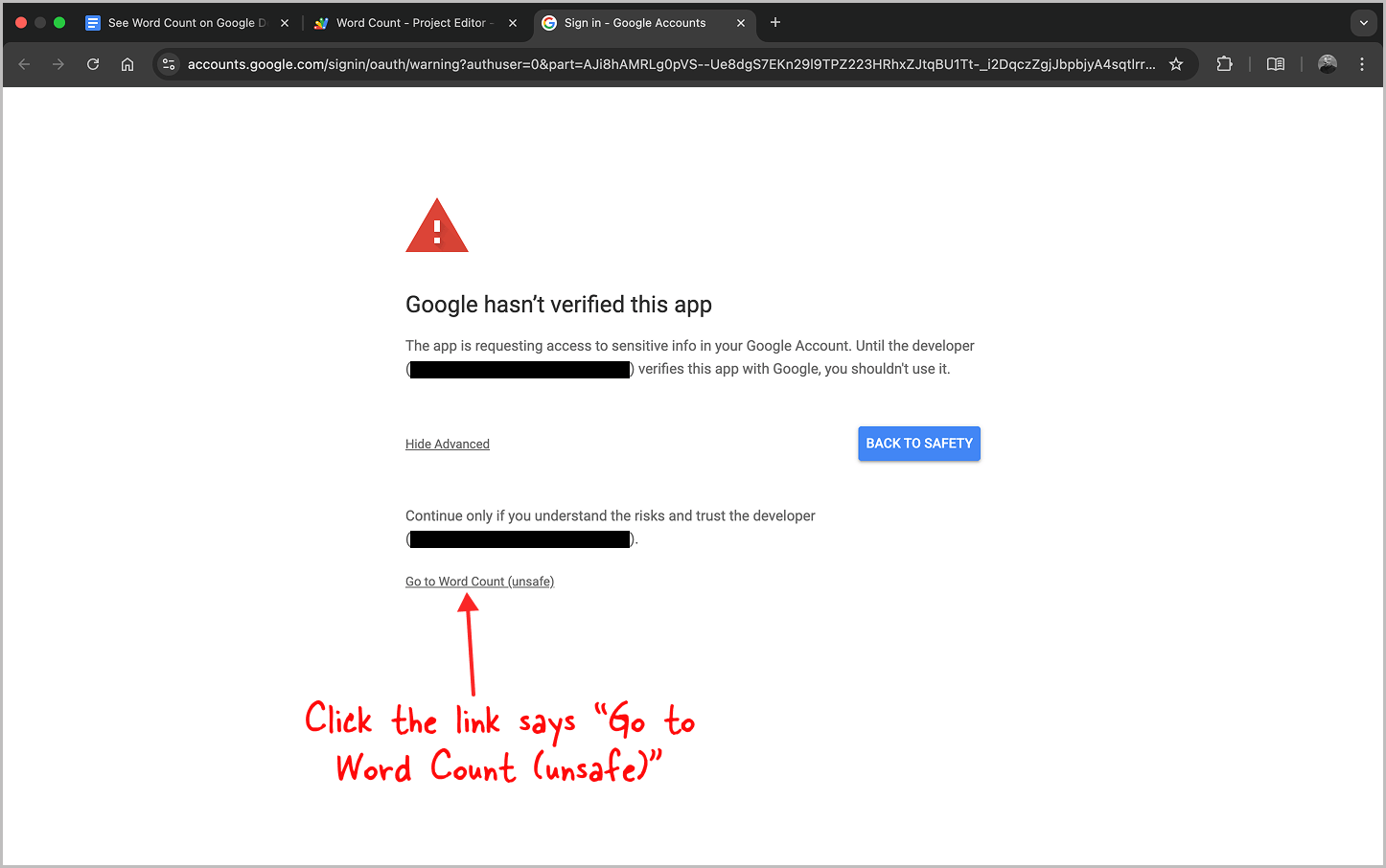
This is a standard warning for scripts you create yourself.
10. Grant Access
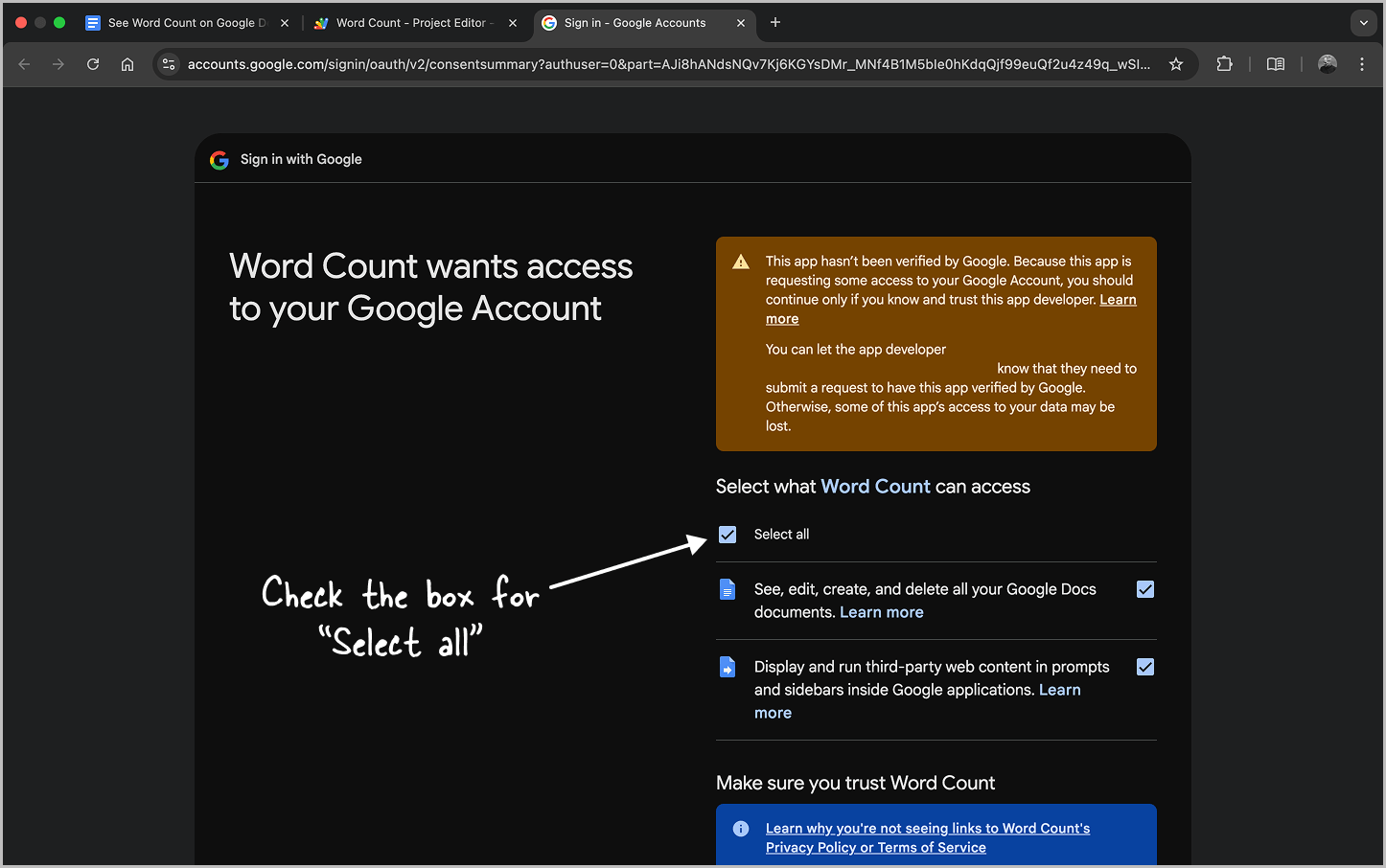
Check the box for Select all, scroll down, and press Allow or Continue.
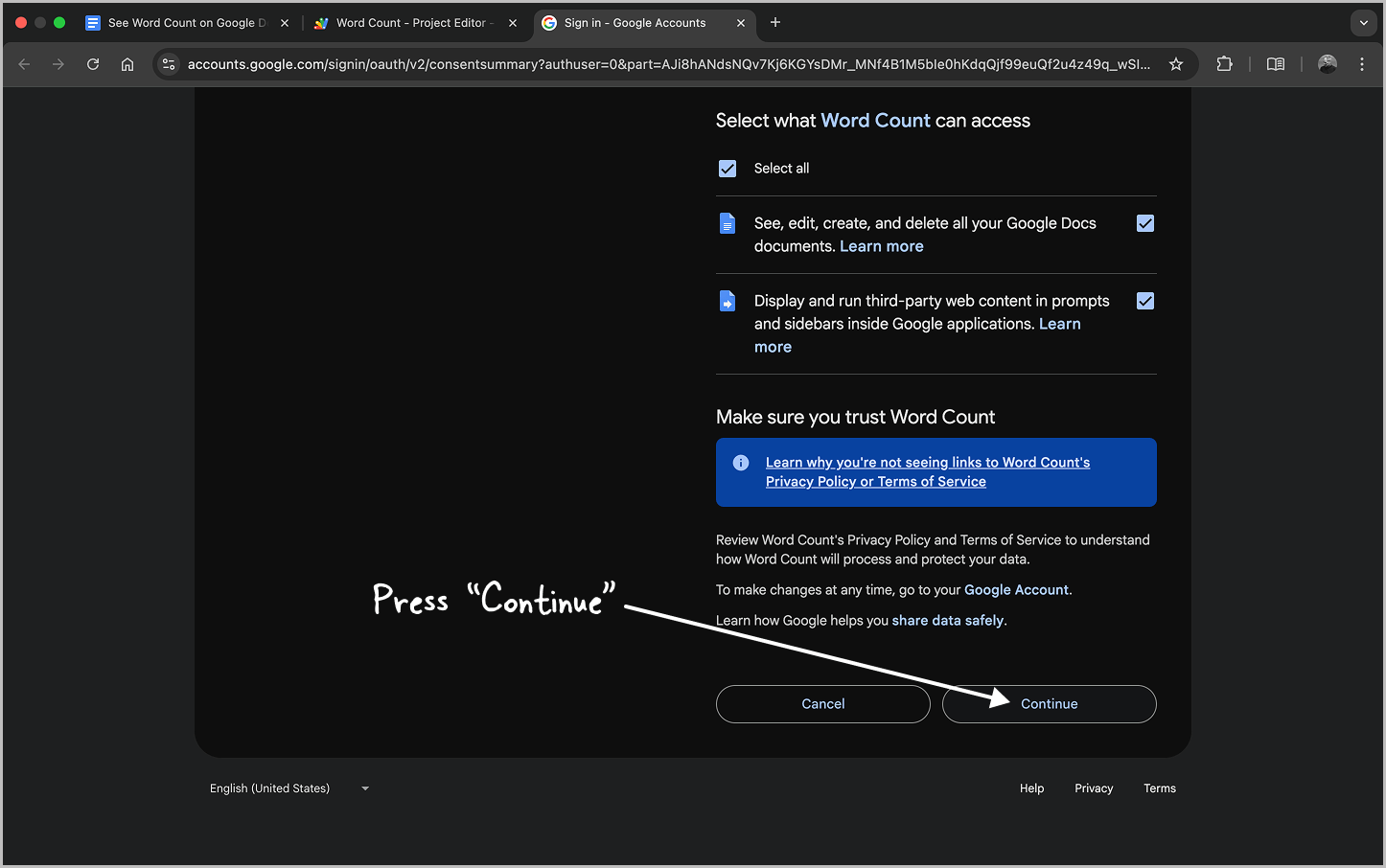
Note on Security: You may see a warning that this app is “unverified” or “unsafe.” Don’t worry—this is a standard Google security message for any custom script you create yourself. Since you are the one pasting the code into your own account, it is perfectly safe to use.
11. Refresh Your Google Doc
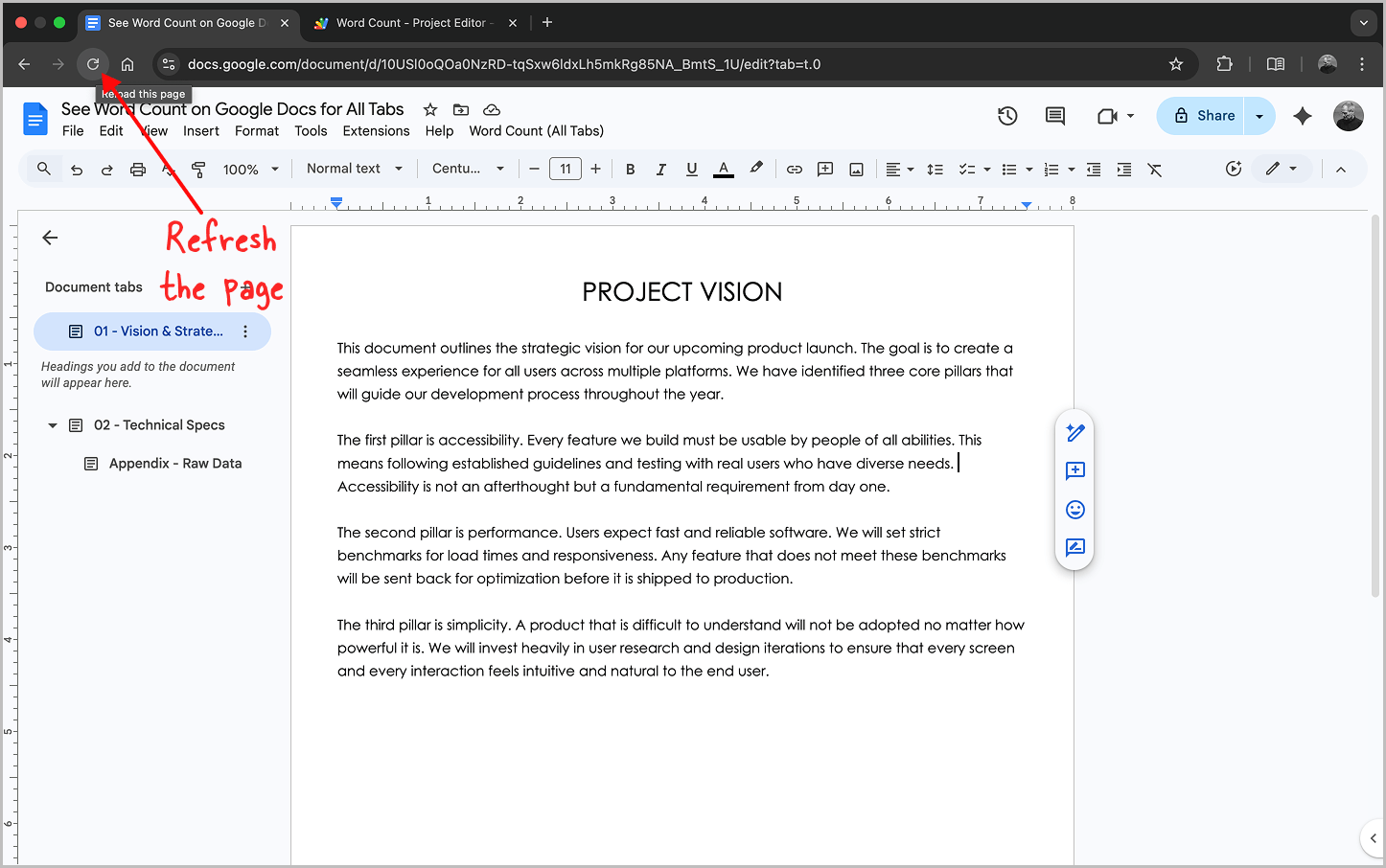
Go back to your Google Document tab and refresh the page so the new menu can load.
12. Launch the Tool
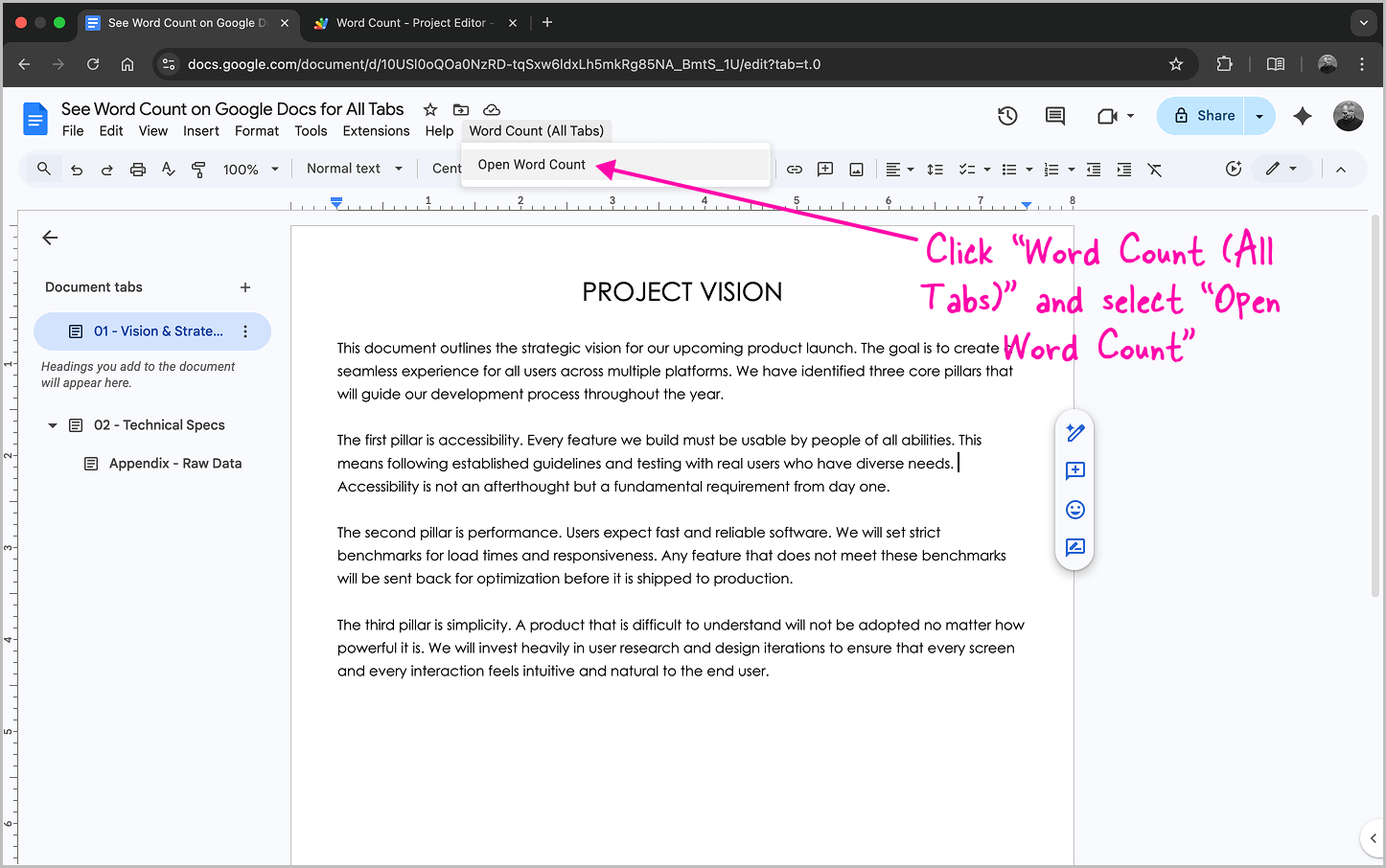
Click the new Word Count (All Tabs) menu at the top of your Doc and select Open Word Count.
13. View and Refresh Results
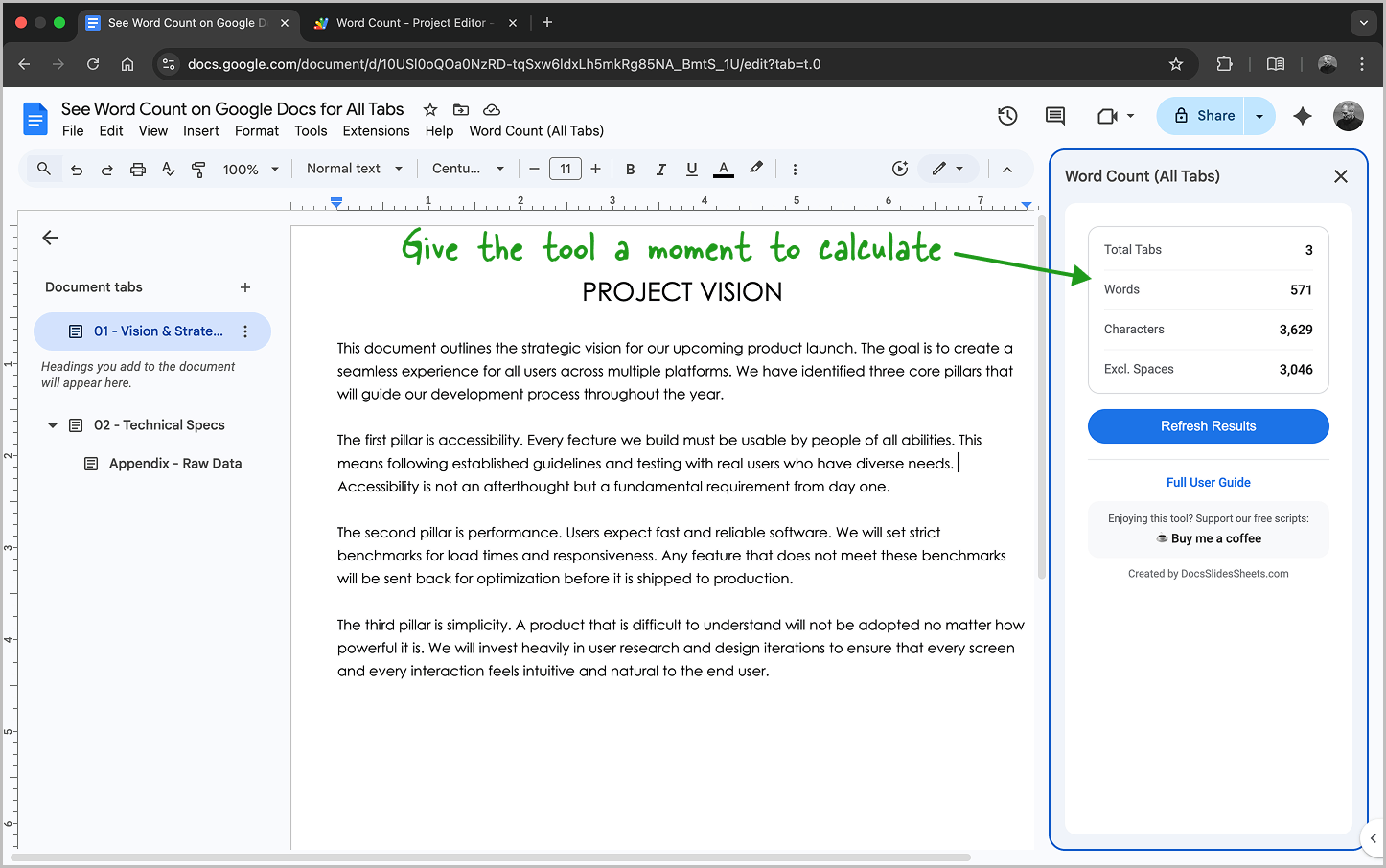
Give the tool a moment to calculate. Click the Refresh Results button anytime you want to see the latest count as you type.